
Most of the time, a camera that keeps disconnecting from wifi is fighting a weak signal, not a broken camera. The fastest check: stand next to the router with your phone and watch the live view. If it holds steady there and drops in the camera’s normal spot, the signal is your problem.
Why your camera keeps disconnecting from Wi-Fi
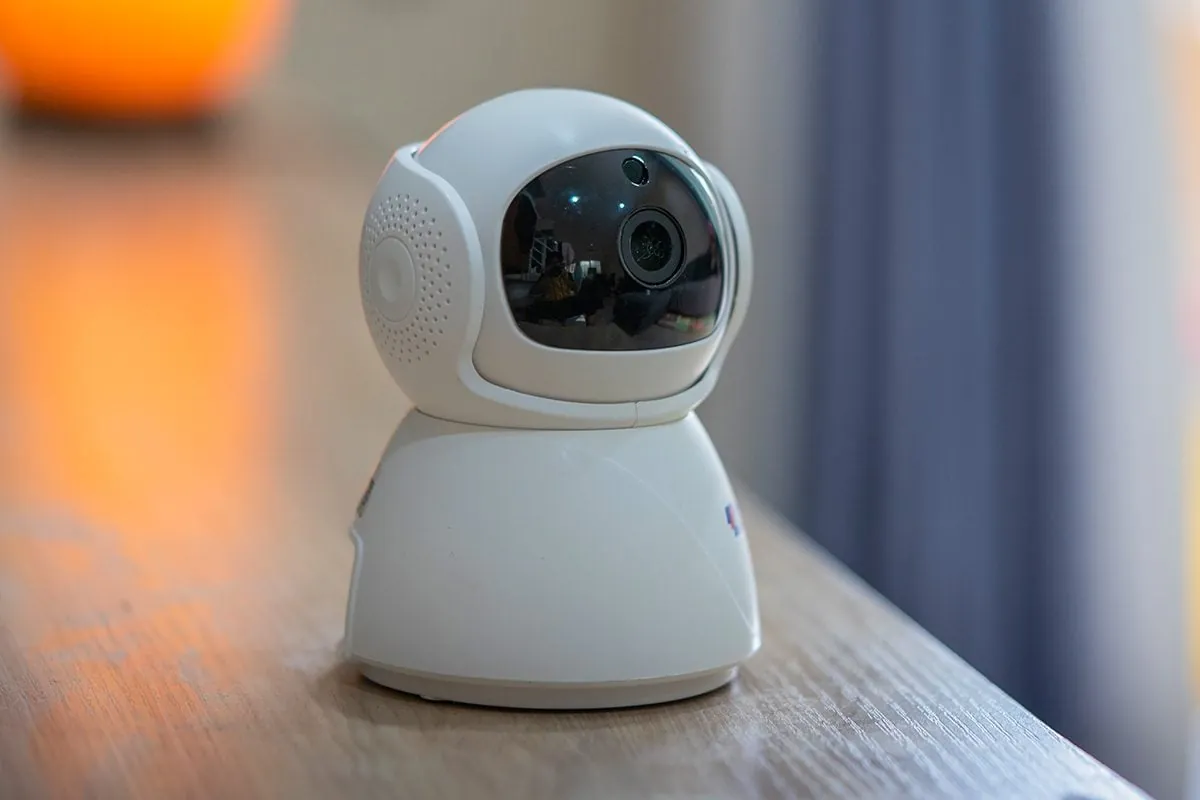
The table below ranks the usual causes by how often each one turns out to be the real reason. Start at the top and work down — the first two explain most cases. “Fix it yourself?” Means a normal person with no tools beyond a phone and a ladder.
| Cause | How common | How to confirm it | Fix it yourself? |
|---|---|---|---|
| Weak Wi-Fi signal at the camera | Very common | Live view holds near router, drops far away | Yes |
| Camera on the 5 GHz band | Common | Router shows separate 2.4G and 5G names | Yes |
| Router overloaded or rebooting | Common | Other devices drop at the same times | Yes |
| Outdated camera firmware | Sometimes | Check version in the camera app | Yes |
| IP address conflict | Sometimes | Camera returns after a router restart | Yes with care |
| Power supply too weak | Less common | Camera restarts or clicks before dropping | Yes with care |
| Failing Wi-Fi radio inside camera | Rare | Drops even one foot from router | No |
Safety: Inside a mains-powered machine, the parts behind the outer cover can hold a dangerous electrical charge even after it has been unplugged — that’s why they sit behind a cover. Opening the housing, or testing or replacing anything behind it, is a job for a qualified technician, never a home repair.
Weak signal is the usual culprit
A weak signal is the most common reason a camera drops its connection, and it produces exactly this symptom: the camera works, then freezes or goes offline, then comes back on its own. Wi-Fi strength falls fast with distance. A camera at the far end of a house sits near the edge of coverage. When the signal dips, the stream needs more bandwidth than the link can carry, so the camera disconnects and reconnects.
The confirming test takes about five minutes. Carry the camera to the same room as the router and plug it back in. Open the live view and leave it running for 10 minutes. If it stays smooth, the signal is the problem. If it still drops, move to the next cause.
The fix is placement, not settings. Move the camera closer, or move the router higher and away from metal and thick walls. If the camera must stay put, add a Wi-Fi extender or mesh node. Expect 20-30 minutes for the move and re-pairing. A mesh node costs more than a plain extender and less than a new camera.
The camera is stuck on the 5 GHz band
Many cameras only work on the 2.4 GHz band, and a dual-band router can push them onto 5 GHz. A camera that connects fine during setup then drops every few hours is often on the wrong band. You tell this apart from weak signal by checking the router’s device list: if the camera shows up under 5 GHz, that’s your answer.
Log into your router’s admin page and check the connected devices list. Most routers label each device with its band. You can also split the bands into separate names, then reconnect the camera to the 2.4 GHz name only.
The fix is a settings change, not a purchase. Turn off “band steering” if your router has it, or rename the bands so you can pick the right one by hand. Reconnect the camera and give it 24 hours. The router maker’s support page walks through it for your model.
Router overload, reboots and IP conflicts
A router with too many devices, or one that reboots, drops cameras too. Home routers handle a limited number of connections, and each camera holds one open all day. Add phones, TVs and laptops, and the router drops the weakest links first. You tell this cause apart from the first two by timing: if the camera drops at the same moment your other devices stutter, the router is the source, not the camera.
The check is simple. Note the time the camera drops, then check the router’s uptime on its admin page. If the uptime resets, the router rebooted. If it doesn’t, count your devices — many home routers get unstable past roughly 20-30 active devices.
The fix: restart the router, update its firmware, and turn off unused devices. For IP conflicts, set the camera to a fixed address in the router’s settings. This takes 10-20 minutes. An older router that keeps rebooting is the one case where replacing it makes sense.
Less common reasons cameras drop off
These show up far less often, but each has one clear clue.
- Outdated camera firmware — the app shows an old version number; updates often fix known connection bugs.
- Weak power adapter — the camera clicks or restarts right before dropping; use only the adapter that came in the box.
- Too many devices on one router — drops spread across all your gadgets, not just cameras.
- Neighbor’s Wi-Fi on the same channel — drops cluster in the evening when everyone’s home; change your channel in router settings.
- A failing Wi-Fi radio inside the camera — the camera drops even one foot from the router, with a good power supply.
That last one is the limit. If the camera fails right next to the router, on the correct band, with its own adapter, the radio inside is likely dying. Opening the housing to check it means mains-level risk and voids the warranty. At that point, contact the camera maker’s support or a qualified technician — don’t open it yourself.
What fixing it actually takes
Most fixes here are free and take under half an hour. Moving a camera or changing a band setting takes 15-30 minutes with no parts. Adding a mesh node or extender costs about as much as a budget camera. Replacing the router only makes sense if yours keeps rebooting.
A new camera is the last resort, and only after the radio test fails. For a quote, check the maker’s official site or a local installer. If the camera sits on a ladder-height wall, add the cost of someone to reach it.
Related guides
- Brita Faucet Filter Troubleshooting- 99% How To Fix It
- 10 Best Diesel Heater for RV: Top Picks to Keep You Cozy
Frequently asked questions
Why does my camera keep disconnecting from Wi-Fi?
A weak signal is the answer in most cases. Test it by bringing the camera next to the router for 10 minutes. If it holds steady there and drops in its normal spot, move the camera or add an extender. If it still drops up close, check the band and power supply next.
How long should a Wi-Fi camera stay connected?
It should stay connected for days or weeks at a time, not hours. Brief drops during a router reboot are normal and last 1-2 minutes. If your camera drops more than once a day, something is wrong — usually signal strength or router load. Check the router’s uptime to rule out reboots.
Can too many devices cause my camera to disconnect?
Yes. Home routers handle a limited number of connections, and many get unstable past roughly 20-30 active devices. The exact limit depends on your router model, so check its spec sheet. Cameras drop first because they hold one constant stream. Turning off unused devices often fixes it.
Is it safe to keep restarting my camera to fix this?
It’s safe but it’s not a fix. Restarting clears the symptom for a while, then the camera drops again. If you’re restarting more than once a week, find the real cause — signal, band, or router load. Frequent restarts also wear out the camera’s power adapter over time.
What happens if my camera’s Wi-Fi radio is failing?
The camera will drop even when it’s right next to the router, on the correct band, with its own power adapter. That points to a failing radio inside. Don’t open the housing — it voids the warranty and carries mains-level risk. Contact the maker’s support or a qualified technician instead.
Does it matter which Wi-Fi band my camera uses?
Yes, a lot. Most cameras only work on 2.4 GHz, which travels farther and passes through walls better. The 5 GHz band is faster but has shorter range. If your camera is on 5 GHz, move it to 2.4 GHz in your router settings and reconnect it.
How do I check if my camera needs a firmware update?
Open the camera’s app and look for the device or firmware section. It shows the current version and whether an update is available. Updates often fix connection bugs. If you can’t find it, check the maker’s official support page for your model — the steps differ by brand.
Can my neighbor’s Wi-Fi make my camera disconnect?
Yes, if you’re both on the same channel. Drops that cluster in the evening, when neighbors are home, point to this. Log into your router and switch to a less crowded channel — 1, 6 or 11 on 2.4 GHz. This is a free fix that takes about 10 minutes.
Conclusion
If your camera holds steady next to the router and drops everywhere else, you’ve found your answer — fix the signal, not the camera. Work down the table, change one thing at a time, and give each change a full day before judging it. Most people solve this without buying anything.